Dialogue Manager Component
The Mountea Dialogue Manager component orchestrates dialogue flow and handles the conversation state.
This configuration exact page covers the main Dialogue Manager from the scope of the Player. Dialogue system also provides a way to handle an environmental dialogue where NPCs talk to each other without any Player input. This setup will be covered later.
Part of a Larger Setup
The Dialogue Manager is one of four components a fully working setup needs, each on a different actor class: Mountea Dialogue Participant on the Pawn, Mountea Dialogue Participant User Interface Component on the Player Controller, Mountea Dialogue Manager (this page) on the Player State, and Mountea Dialogue Session on the Game State. The Session component holds the actual authoritative, replicated dialogue state and drives traversal - the Manager is the per-player entry point that talks to it, not the thing running the conversation by itself. The editor's Setup Defaults tool can add all four automatically for Blueprint-based project classes.
1. What Does It Do
- Initializes and manages dialogue sessions
- Controls UI creation and destruction
- Processes player input and choices
- Manages dialogue state transitions
- Exposes Blueprint events for game logic integration
2. Critical Requirements
Player State Only
The Player Manager Component must be attached to your Player State for Player in order to make the Dialogue work.
Interface Implementation
Implements IMounteaDialogueManagerInterface, which contains essential flow functions.
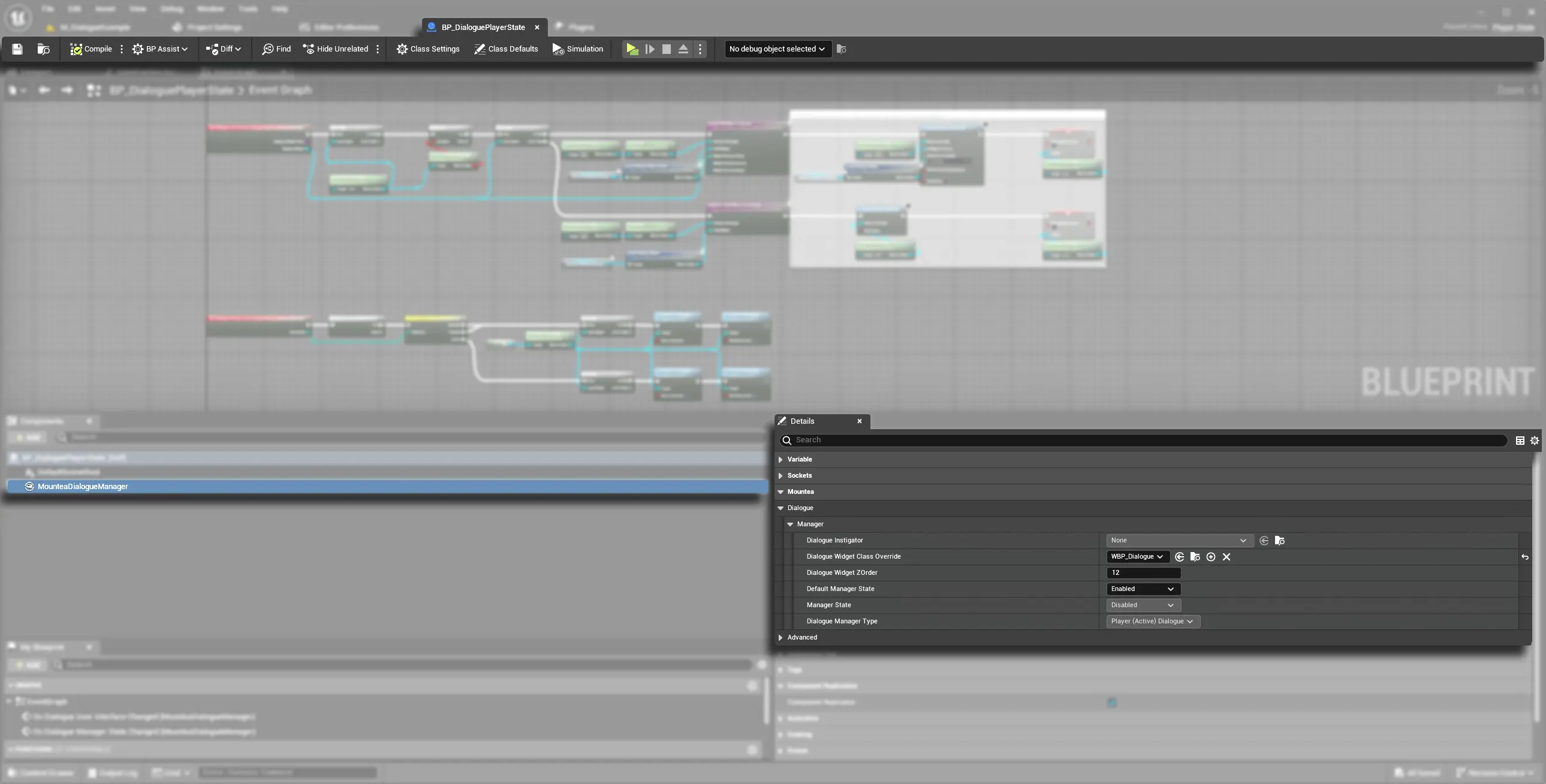
3. Adding the Component
Step 1: Open Player State
- Open your Player State Blueprint.
- Click the Add Component button.
- Search for Mountea Dialogue Manager.
Step 2: Select Component Type
Choose between:
- Mountea Dialogue Manager - Basic C++ component.
- BP_MounteaDialogueManager - Pre-configured Blueprint with default widget and settings.
Quick Setup
The blueprint version includes a predefined Widget Blueprint and common defaults for faster setup.
Use Example Data
In the Example map there is already pre-defined Player State class which can recycled/copied from the plugin.
4. Component Configuration
Dialogue Manager has a lot propertis which can be set up and/or read.
| Property | Description | Default |
|---|---|---|
| Dialogue Widget Class (Deprecated) | The UI class override for this manager. Superseded - assign the widget class via UMounteaDialogueConfiguration::DefaultDialogueWidgetClass instead. |
nullptr |
| Default Manager State | The state applied on BeginPlay. | Enabled |
| Manager State | Read-only value of Manager State. In order to start Dialogue, this value must not be Disabled. | Enabled |
| Manager Type | Defines the type of the Manager, be it Environmental or Player one. |
Player |
| Dialogue Objects (Deprecated) | Formerly an array of UI-event listeners. Superseded - attach a Mountea Dialogue Participant User Interface Component to each actor instead. |
empty |
| Dialogue Widget (Deprecated) | Formerly the created Dialogue Widget reference. Superseded - UI is now owned by the Mountea Dialogue Participant User Interface Component. |
nullptr |
| Dialogue Context | Dialogue Context which is used to contain temporary data. Read-only for standard gameplay scenarios. | nullptr |
| Dialogue Instigator | Object which is responsible for starting the Dialogue. | nullptr |
UI Properties Are Deprecated
Dialogue Widget Class, Dialogue Objects, and Dialogue Widget still exist on the component for backward compatibility, but the engine marks all three DeprecatedProperty in code. New projects should configure the default widget class on UMounteaDialogueConfiguration and attach a Mountea Dialogue Participant User Interface Component to the Player Controller instead of relying on these - see the UI Widgets documentation for the current approach.
Default Fallback
Either set this on the component or define a default in Project Settings - Mountea Dialogue System.
Active State Restriction
You cannot set Active as the default state - it's reserved for runtime only.
5. Component Events
Hook into these Blueprint-assignable events to drive your game logic at key points:
| Event | Description |
|---|---|
OnDialogueInitialized |
Fired when the dialogue system finishes initialization. |
OnDialogueStarted |
Fired when a dialogue session begins. |
OnDialogueClosed |
Fired when a dialogue session ends (manually or automatically). |
OnDialogueContextUpdated |
Fired whenever the runtime context data changes. |
OnDialogueUserInterfaceChanged |
Fired when the dialogue widget is created or closed. |
OnDialogueNodeSelected |
Fired when the active dialogue node changes. |
OnDialogueNodeStarted |
Fired at the start of a dialogue node’s execution. |
OnDialogueNodeFinished |
Fired when a dialogue node finishes execution. |
OnDialogueRowStarted |
Fired when an individual dialogue row begins (line or voice). |
OnDialogueRowFinished |
Fired when an individual dialogue row ends. |
OnNextDialogueRowDataRequested |
Fired when the manager requests the next row’s data. |
OnDialogueFailed |
Fired if the dialogue initialization or execution fails (provides an error message). |
OnDialogueManagerStateChanged |
Fired when the manager transitions between states (e.g., Enabled → Active). |
OnDialogueVoiceStartRequest |
Fired when a voice line is requested to start playing. |
OnDialogueVoiceSkipRequest |
Fired when a voice line skip is requested by the user. |