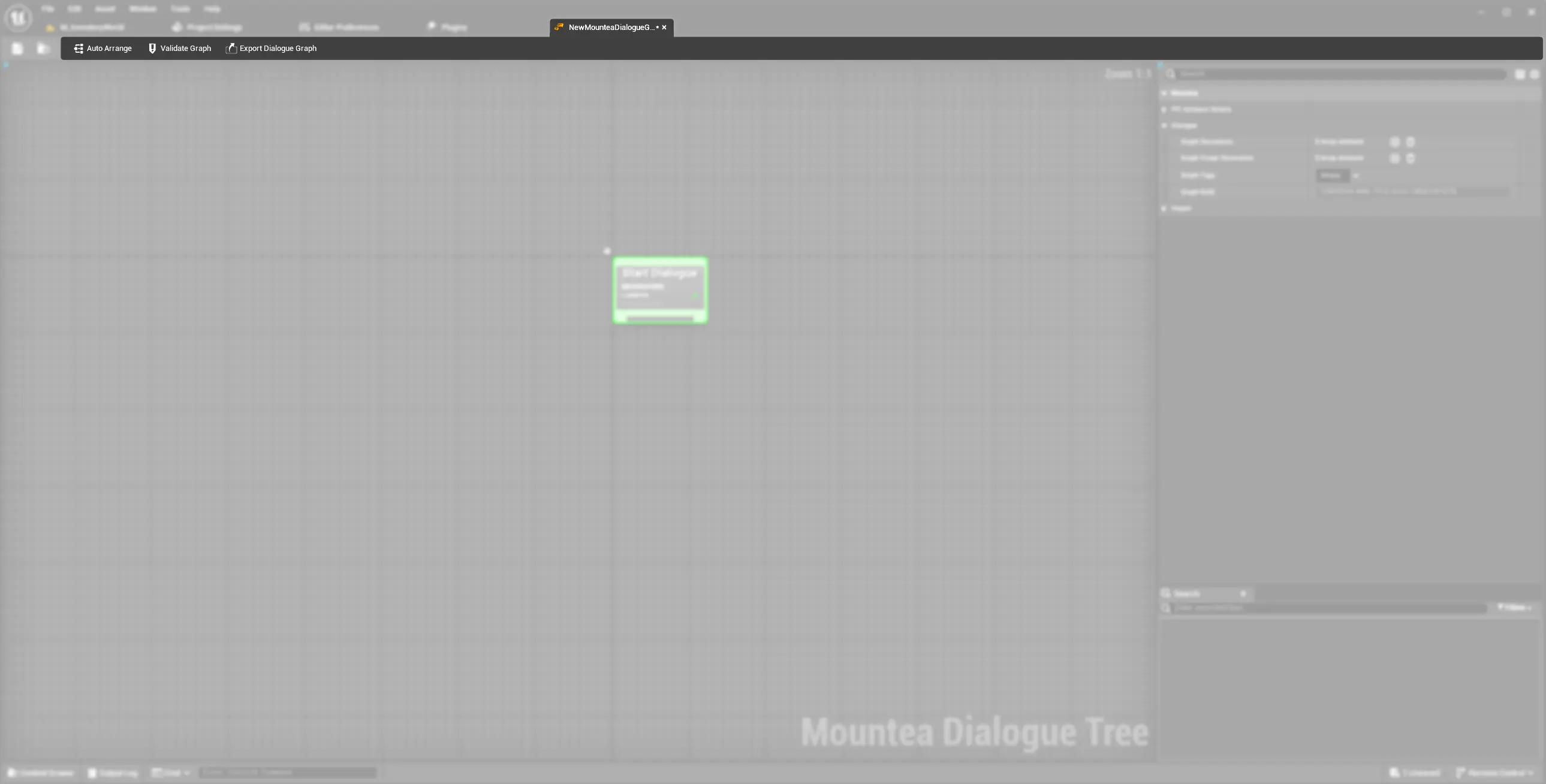
Dialogue Tree Editor
The Dialogue Tree Editor is the custom graph editor Unreal opens when you double-click a Dialogue Tree asset. Crafting Your First Dialogue already walks through using it - opening it, adding nodes, binding data, clicking Auto-Arrange/Validate/Export. This page is the reference layer underneath that: how the editor is actually built, why a connection is allowed or refused, how validation decides whether a broken graph is even allowed to run, and what each toolbar action is really doing.
1. Introduction
What You'll Learn
- Why every node on the canvas is really two objects, and why that matters if you write a Custom Node in C++
- The full chain of checks that decides whether a connection between two nodes is legal
- What
Validate Graphactually checks, in order, and how it relates to the runtime check that keeps a broken Dialogue from crashing mid-conversation - What the toolbar actions do internally, without repeating the click-by-click steps
2. Two Objects for Every Node
Every node you place on the canvas is backed by two separate UObjects, not one:
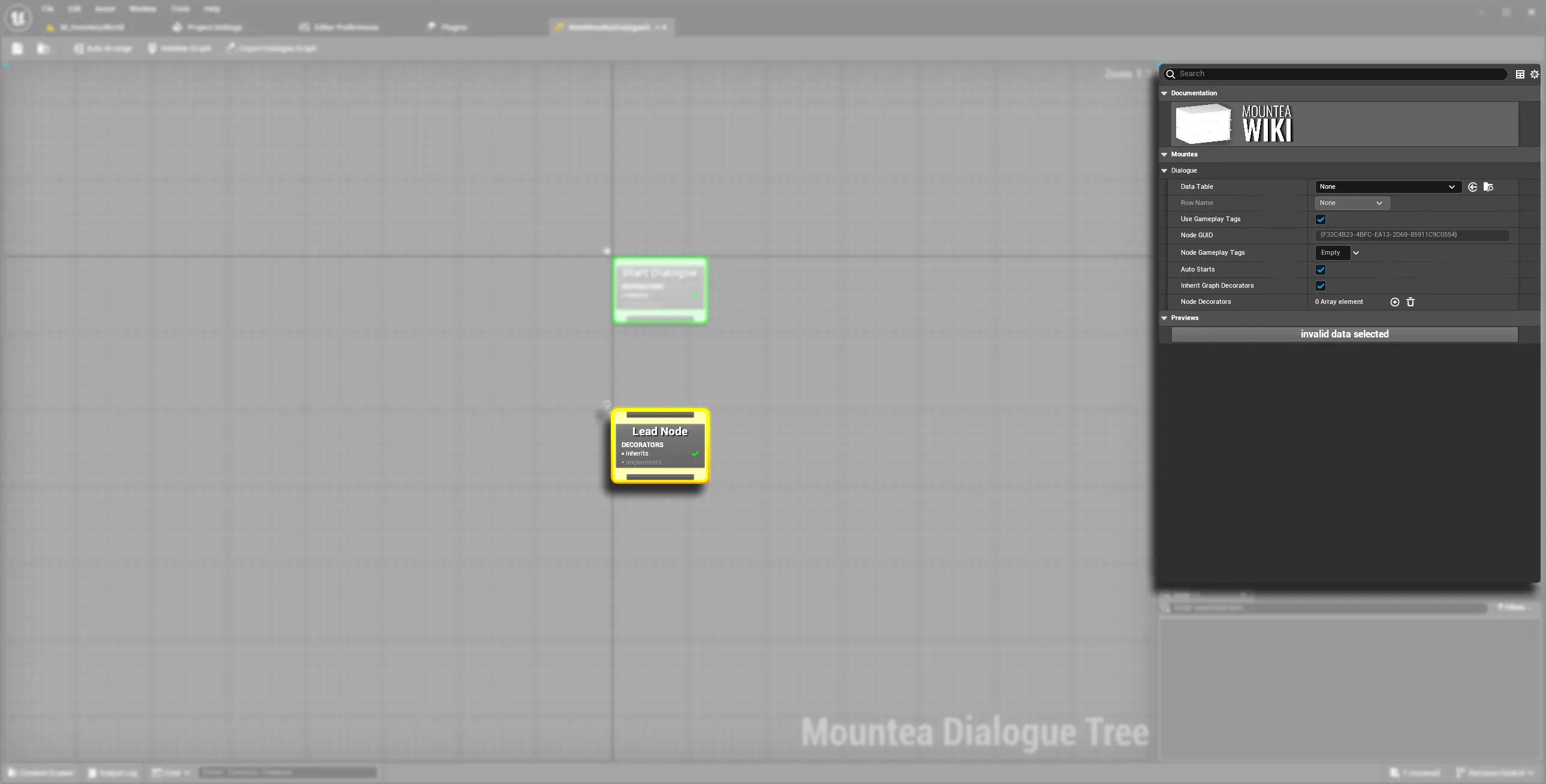
UMounteaDialogueGraphNode(runtime) - the data and behaviour covered on Dialogue Node Intro. This is what ships inside a cooked build.UEdNode_MounteaDialogueGraphNode(editor-only) - a thinUEdGraphNodesubclass that exists purely so the graph has something to draw. It holds anInstancedpointer straight back to the runtime node (DialogueGraphNode) and delegates almost everything to it: node title, background colour, whether the node can be deleted/copied/cut/pasted (mirrored from the runtime node's own flags), and how many pins it gets (frombAllowInputNodes/bAllowOutputNodes). What the Ed node actually owns itself is narrow: canvas position sync (UpdatePosition), the Slate icon, and undo/copy plumbing (PrepareForCopying,PostEditUndo).
Info
UEdNode_MounteaDialogueGraphNode is not subclassed per node type. Start, Lead, Answer, Complete, Delay, Return To, and Open Child Graph all use the exact same Ed node class - the visual differences you see per node type come entirely from data on the runtime node it wraps.
Where the "editor-only" data actually lives
This is the part worth knowing before you write a Custom Node in C++: properties like the node's canvas colour aren't declared on the Ed node at all. They live directly on the runtime node class, guarded by #if WITH_EDITORONLY_DATA - most notably EditorNodeColour and EditorHeaderForegroundColour, alongside the bAllowInputNodes/bAllowOutputNodes/bAllowCopy/bAllowCut/bAllowPaste/bAllowDelete/bAllowManualCreate/bCanRenameNode flags, ContextMenuName, NodeTooltipText, and CompatibleGraphType. UMounteaDialogueGraphNode::GetBackgroundColor() returns EditorNodeColour in editor builds and a flat black in a cooked build, since the property itself doesn't exist there - the Ed node's own GetBackgroundColor() just forwards to it.
Practically: if you're subclassing UMounteaDialogueGraphNode in C++ to build a Custom Node and want it to look distinct on the canvas, you set EditorNodeColour in your subclass's constructor (inside a WITH_EDITORONLY_DATA guard) - there's no separate editor-side class to touch, because every node type shares the one Ed node wrapper described above.
3. How a Connection Gets Accepted or Refused
Dragging a link between two pins runs through several checks in order, split across the editor scheme and the runtime node itself.
- Same node -
UAssetGraphScheme_MounteaDialogueGraph::CanCreateConnectionrejects a pin connecting to another pin on the same node immediately. - Direction - input can't connect to input, output can't connect to output.
- Cycle detection - a graph-wide loop check runs in both directions before anything else is allowed. This is why the error tooltip for a would-be cycle explicitly points you at
Return To Nodeinstead: normal pin connections can only move traversal forward. - Open Child Graph target - if either endpoint is an
Open Child Graphnode with noTarget Dialogueassigned yet, the connection is refused until one is set. - Monologue single-child cap - if the owning Graph resolves as a Monologue graph, a node whose output already has one connection can't take a second. This is enforced here, at the editor scheme level, not on the node itself.
Only after all of the above pass does the scheme delegate to the runtime node: Node->CanCreateConnection(Other, Direction, ErrorMessage). This is where node-type compatibility is actually decided. Each concrete node class carries its own hardcoded AllowedInputClasses array, set in its constructor - this is what stops you wiring, say, an Answer Node's output straight into a Start Node. That array is exposed through the GetAllowedInputClasses BlueprintNativeEvent, so a Custom Node (C++ or Blueprint) can override which upstream node types it accepts.
Configuration's NodesConfiguration override, and its current reach
UMounteaDialogueConfiguration also carries a NodesConfiguration map intended to let a project extend a node class's allowed inputs without touching C++, and the plugin ships a dedicated helper for merging it in, UMounteaDialogueSystemBFC::GetAllowedInputClasses. As implemented today, though, none of the built-in node types call that helper - they don't override GetAllowedInputClasses at all, so the check above resolves straight to the base class's implementation, which just returns the hardcoded array. The NodesConfiguration override is real and wired correctly on its own, but a project has to opt in explicitly (override GetAllowedInputClasses on a custom node and call the BFC helper yourself) - it doesn't apply automatically to Lead/Answer/Complete/Delay/etc. out of the box.
4. The Validation Pipeline
Validate Graph on the toolbar (and Unreal's own asset-validation pass) calls UMounteaDialogueGraph::ValidateGraph, which runs five checks in a fixed order and collects every failure rather than stopping at the first one:
ValidateGraphType- requiresUMounteaDialogueSystemSettingsto exist, itsDialogue Configurationpointer to be assigned and loadable, and the Configuration to successfully resolve the Graph's ownGraphTagsinto a known graph type. Any one of those missing fails validation right here, with a specific message for which piece is absent.ValidateMonologueConstraints- only runs at all if the Graph resolved as a Monologue type in step 1; re-checks Settings/Configuration for the monologue-specific setup.ValidateDecorators- runs once for the Graph's ownGraphDecoratorsand once forGraphScopeDecorators, catching invalid or duplicate decorator setups at the Graph level (separate from each Node's own decorators, checked in step 5).ValidateStartNode- fails ifStartNodeis null.ValidateAllNodes- callsValidateNodeon every entry inAllNodes.
Every failure is appended as both a rich-text message (shown in the validation popup) and a plain one (written to the Output Log in the {ComponentName}: {ErrorMessage} format the Getting Started page already shows).
Two Different Validation Passes, on Purpose
ValidateGraph above is the thorough editor-time check. A live game runs a separate, cheaper runtime check before it will actually start a conversation, CanStartDialogueGraph() - it doesn't repeat the Settings/Configuration/decorator checks, it just confirms AllNodes isn't empty and that every node's own lightweight ValidateNodeRuntime() passes. This is exactly why a broken Dialogue Tree refuses to start instead of crashing mid-conversation: the runtime never assumes the graph is well-formed, it always asks first.
5. Toolbar Actions
Crafting Your First Dialogue already covers clicking these; this section only adds the "why."
- Recenter / Fit to View - pure viewport framing. No graph data is touched.
- Auto Arrange - editor-only layout logic (
Layout/ForceDirectedSolveLayoutStrategy.h,Layout/TreeSolveLayoutStrategy.h) that repositions existing nodes on the canvas. It only ever writes node position, never node data, so it's safe to run even on a Graph that currently fails validation. It's marked experimental in its own tooltip because it can occasionally freeze the editor on a large graph. - Validate Graph - runs the pipeline in section 4 and reports every failure found.
- Export Dialogue Graph - the only import/export action that lives in this editor's own toolbar. The format, and the rest of the import/export pipeline, is its own page: Import & Export Dialogues.
Setup Defaults isn't here
The Setup Defaults automation lives under the main Level Editor's Mountea Framework → Mountea Dialogue → Setup Defaults menu entry, not on this graph editor's toolbar - it configures your project's GameMode-related actor classes, not the Graph you currently have open. See Setup Defaults.